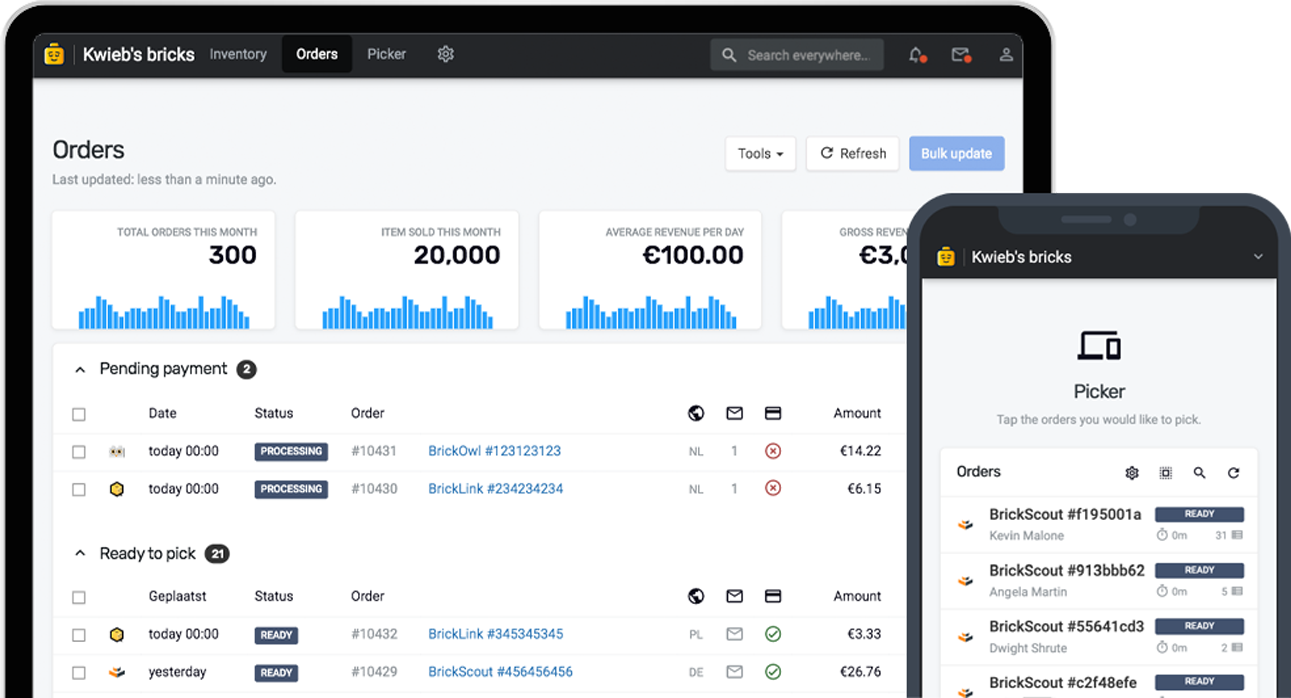
You know how tedious it can be to build an order by hand. Searching for parts individually, checking your inventory, setting the prices; it takes time you don't have when a customer is standing right in front of you. We've built a better way. You can now import items directly into a Storefront order from a LEGO® set part-out, a BrickStore BSX file, a BrickLink CSV, or a Studio CSV. Look up items from a set, or import your customer's wanted lists, and go from zero to a fully priced order in a few seconds.
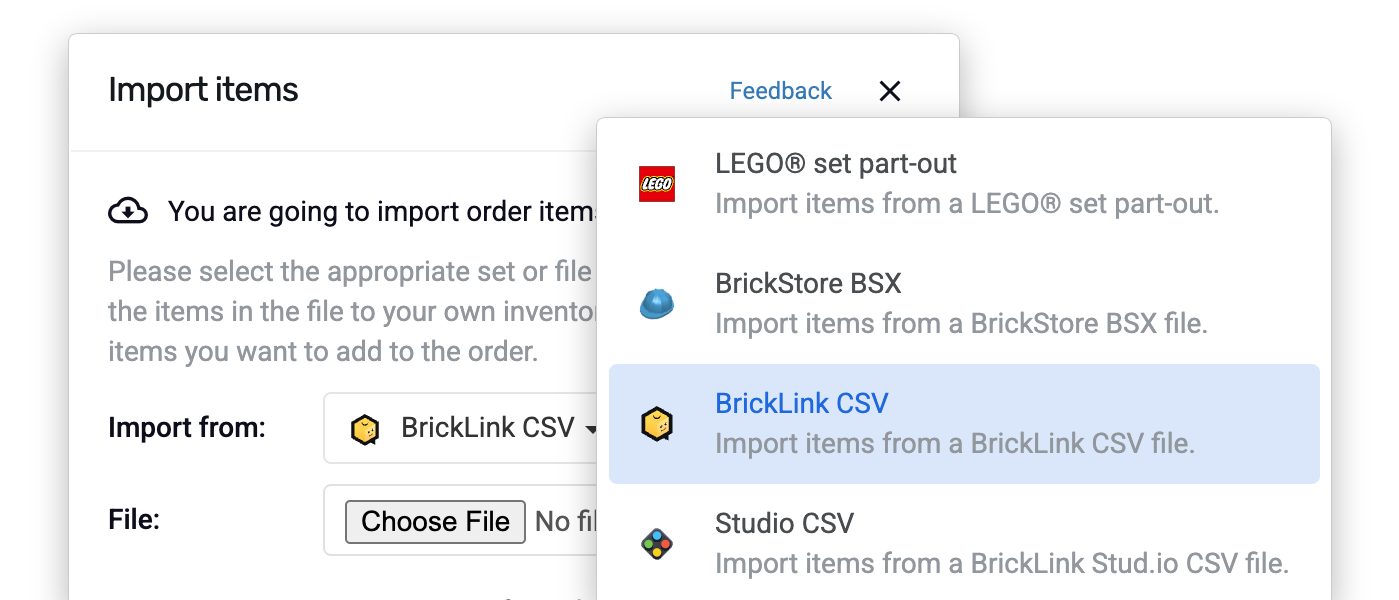
Four ways to import items into an order instantly
Storefront is our primary feature to build orders off-marketplace for your customers. You can already search items from your inventory and build an order manually, but you can now also import items automatically from four different sources.
To get started, open Storefront and click Import items. A dialog will appear where you can pick your import source and configure a few options before continuing.
LEGO® set part-out
The part-out import is built for the most common scenario: a customer wants to complete a set and is missing some items. You select the part-out option as the import source and enter a set number. The system will fetch the parts list for that set so you can review which items the customer is missing.
Need to part out multiple sets in one go? Just add more rows! You can enter as many set numbers as you like, each with its own quantity, and Bricqer will merge them all into a single import. Parting out three copies of set 10305 and two copies of 75313 for the same customer? Done in a few clicks.
BrickStore, BrickLink CSV, and Studio CSV imports
For file-based imports, select the appropriate source from the dropdown, then upload your file. Once you've selected a file, you have two options to consider:
- Use prices from the file: If you check this option, Bricqer will use the prices stored in the file rather than the prices from your own inventory. This is useful when a customer sends you a BrickLink wanted list with target prices, or when you want to honour the pricing from a BrickStore collection.
- Search for cheapest parts: Files exported from BrickLink or Studio sometimes don't specify a color for an item. For example, when a part is available in many colors and color doesn't matter. When you enable this option, Bricqer will ignore the color and condition specified in the file and automatically select the cheapest matching item from your inventory. This is a great way to maximise your margins on multi-part orders.
Review and adjust before adding
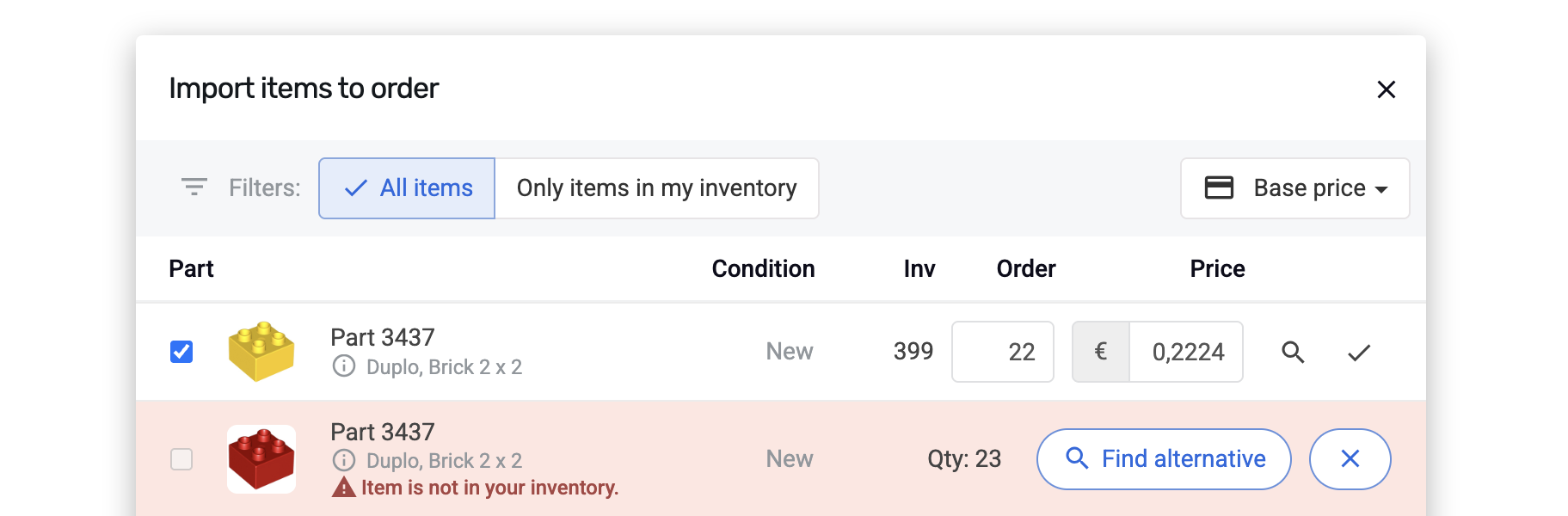
After you click Continue, Bricqer processes the import and shows you a results overview. This is where the real power lies. For every item in the import, you'll see:
- Stock levels: see at a glance how many units you currently have in inventory for each item.
- Editable prices: override the price for any item before adding it to the order.
- Alternative items: if an item isn't available in the specified color or condition, you can search for alternatives such as the same part in a different color or condition.
- Add all at once: once you're happy with the results, add every item to the order in a single click. Or add items individually if you prefer to be selective.
You can even switch between your marketplace pricing formulas and see the results update in real time.
Try it out for yourself
We're really excited about this one. It removes one of the most friction-heavy workflows in Bricqer and opens up yet another way to grow your sales beyond the traditional marketplaces.
Give it a try in your next Storefront order: open any order, click Import items, and see how fast you can go from a parts list to a confirmed sale.
- Part out one or multiple LEGO® sets with custom quantities in a single import.
- Import prices directly from the source, or fall back to your own inventory prices.
- Automatically select the cheapest color match when color isn't specified.
- Review stock levels, edit prices, and find alternatives before adding items.
If you're new to Bricqer or looking for help getting started with Storefront orders, visit our Storefront guide for a full walkthrough!

Robert de Vries
2026-03-19
About 4 minutes

Ready to get started?
Sign up and we'll have you up and running in no-time!